
Playing a fixed route by hand on every build is slow, making precise comparisons between builds difficult. With the open-source (Apache-2.0) Cluewren, your own coding agent (Claude Code or Codex) uses Cluewren’s MCP server to play the game open in the Unity, Godot, or Unreal Engine editor. The agent reads the code and writes a C# harness, Jev (a fast decision model from TypeSafe) plays it through the engine plugin, and the agent reports a verdict with measured evidence. During that play, the Framedash Unity SDK records frame time. This post walks the same route on two builds to find which build and which part of the level got slower. The slowdown in the candidate build was simulated as a stand-in for a heavy asset or effect.
Environment and prerequisites
This walkthrough used the following setup:
- Unity: Unity 6000.6.7f1
- Sample project: a copy of Unity’s FPS Microgame (MainScene) with the Cluewren Unity plugin installed
- Cluewren requirements: Windows 11 (tested), .NET 10 SDK, build from source, a TypeSafe API key, Claude Code or Codex
Cluewren itself sends nothing to Cluewren. Decision requests go to TypeSafe’s API, and the agent talks to its own provider.
Install the plugin and SDK
For installing Cluewren, see the Cluewren install guide. For adding the plugin to a Unity project, see the Cluewren Unity plugin docs. The Framedash Unity SDK v0.1.8 is added via Package Manager git URL:
https://github.com/crane-valley/framedash-unity-sdk.git#v0.1.8Add the telemetry probe script
Add the following script to the project:
using System;
using Framedash;
using Unity.FPS.Gameplay;
using UnityEngine;

public sealed class FramedashPlaytestProbe : MonoBehaviour
{
    const string MapId = "fps-microgame-main";
    const float Interval = 0.25f;

    PlayerCharacterController _player;
    float _next;

    [RuntimeInitializeOnLoadMethod(RuntimeInitializeLoadType.AfterSceneLoad)]
    static void Boot()
    {
        if (string.IsNullOrEmpty(Environment.GetEnvironmentVariable("FRAMEDASH_API_KEY")))
            return;
        TelemetrySDK.Initialize(buildId: Environment.GetEnvironmentVariable("FRAMEDASH_BUILD_ID"), enableOfflineQueue: false);
        TelemetrySDK.Instance.BeginAutomatedSessionFromEnvironment();
        var go = new GameObject(nameof(FramedashPlaytestProbe));
        DontDestroyOnLoad(go);
        go.AddComponent<FramedashPlaytestProbe>();
    }

    void Update()
    {
        if (Time.unscaledTime < _next)
            return;
        _next = Time.unscaledTime + Interval;
        if (_player == null)
            _player = FindAnyObjectByType<PlayerCharacterController>();
        if (_player != null)
            TelemetrySDK.Instance.Track("player_position", MapId, _player.transform.position);
    }

    void OnApplicationQuit() => TelemetrySDK.Instance.FlushBlocking(5000);
}
This script initializes the SDK only when FRAMEDASH_API_KEY is set.
The build tags are applied automatically from FRAMEDASH_BUILD_ID and FRAMEDASH_TEST_SCENARIO.
The player position is sent every 0.25 s as a player_position event with map_id set to fps-microgame-main.
By SDK design, every Track() event records the frame time, FPS, GPU time, and memory of that moment, so the position samples double as per-location frame-time samples.
The SDK also automatically sends a perf_heartbeat event every 10 s.
Set environment variables and launch the editor
Before launching the Unity editor, set these environment variables:
FRAMEDASH_API_KEY=<Ingest key with events:write>
FRAMEDASH_BUILD_ID=fps-walk-base
FRAMEDASH_TEST_SCENARIO=cluewren-walkthrough
The first run, in which the agent writes and fixes the harness, gets its own build ID (we used fps-walkthrough-baseline) so its events stay out of the comparison.
Then set fps-walk-base for the measured baseline run and fps-walk-heavy-chamber for the candidate run, each in a fresh editor launch with that variable set.
Set the API key only in the environment that runs the editor; never paste keys into the agent chat.
Prompt the agent and run the cold pass
Give the coding agent (Claude Code, Opus) the same request for both builds:
Walk the player through the whole level: start at the spawn point, go through every area the level contains, and finish back at the start. Do not fight unless an enemy blocks the way.
On the first (cold) run, the agent required 3 episodes and 471 s.
In episode 1 it fell off the field edge into the lava, and in episode 2 a HoverBot killed it.
The agent fixed its harness each time and completed the route in episode 3.
This run was recorded under its own build ID, fps-walkthrough-baseline, so its events are not in the comparison.
The generated harness is kept in the project’s run memory and reused for the same request.
Results across both builds
The candidate build simulates an expensive effect inside the lower chamber: while the player stands inside the chamber, the main thread spins for 12 ms each frame. This stands in for a real heavy asset or effect.
Because the runs reused the warm harness, each compared run took a single episode:
- Baseline (
fps-walk-base): achieved, 84.7 s report time, back at the spawn point at t=62.0 s. Route: central hall, west altar, four quarters of the big open field, field gateway, stairs through the big door, entrance, far end and east side of the lower chamber, and back to spawn. One fight (shot the HoverBot that was shooting at it, 2.8 s). - Candidate (
fps-walk-heavy-chamber): achieved, 83.4 s report time, same 12 plan steps in the same order, back at spawn at t=62.4 s. Same single fight (2.8 s).
Compare with perf-diff and the Regression page
Compare the two builds with the Framedash CLI (@framedash/cli 0.2.0) using an analytics:read key:
npx @framedash/cli perf-diff --baseline fps-walk-base --candidate fps-walk-heavy-chamber --metric frame_time --threshold 10 --days 7The output lines for the metrics:
frame_time: baseline P50 8.92 ms, candidate P50 15.09 ms (+69.3 %,isRegressionistrue); P95 52.66 ms vs 53.20 ms.memory: -0.4 % (not a regression).gpu_time: -15.6 % (not a regression; values are around 1.4-1.6 ms, so this is noise).
The report’s isRegression flag is directional: it is true whenever the metric got worse.
The percentage threshold is not applied to this flag.
The --threshold value gates only the exit code when you pass --fail-on-regression.
Add --fail-on-regression to fail a CI job when a regression exceeds the threshold.
For CI setup, see Check game performance in CI before merging a change, Detect Unity performance regressions in CI, and the CLI reference.
The dashboard’s Regression page shows the same result:
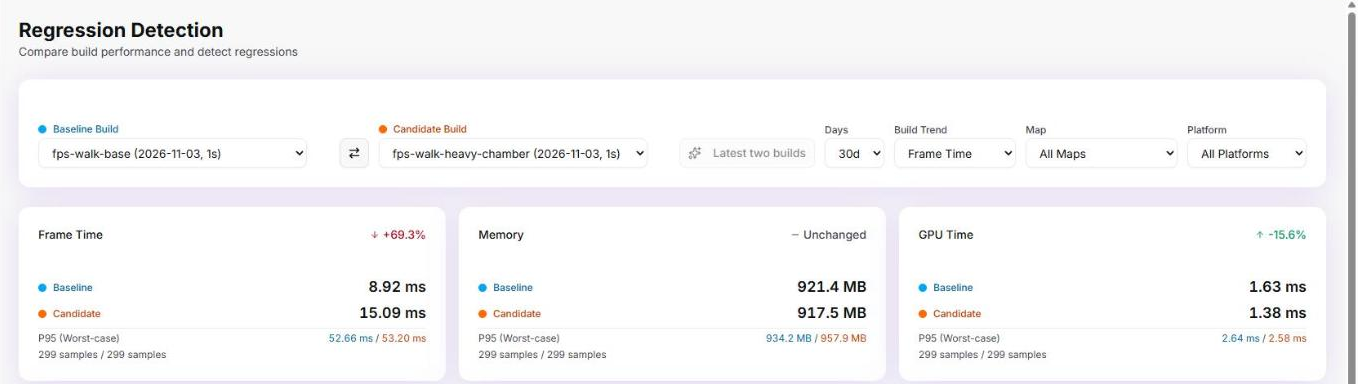
The dashboard shows the same numbers: Frame Time +69.3 % (8.92 ms vs 15.09 ms), with 299 samples for each build.
Break down by area with the query
To locate where the slowdown happened, run SQL through the CLI’s query command to group by area.
This command requires a Full key with the data:admin scope (read keys receive a 403 error).
The lower chamber is the part of the level below floor level (y < -3) at x > 20 in Unity world units.
npx @framedash/cli query "SELECT build_id, (position_y < -3 AND position_x > 20) AS lower_chamber, count() c, round(quantile(0.5)(frame_time_ms),1) p50, round(quantile(0.95)(frame_time_ms),1) p95 FROM events WHERE build_id IN ('fps-walk-base','fps-walk-heavy-chamber') AND event_name='player_position' GROUP BY build_id, lower_chamber ORDER BY build_id, lower_chamber"The aggregated results:
| build_id | area | samples | P50 | P95 |
|---|---|---|---|---|
| fps-walk-base | outside chamber | 227 | 7.6 ms | 52.9 ms |
| fps-walk-base | lower chamber | 65 | 11.5 ms | 36.7 ms |
| fps-walk-heavy-chamber | outside chamber | 224 | 7.0 ms | 53.2 ms |
| fps-walk-heavy-chamber | lower chamber | 68 | 26.0 ms | 54.0 ms |
The entire regression sits inside the lower chamber (+14.5 ms at P50, matching the 12 ms spin plus overhead). The rest of the route shows no change in frame time.
Caveats to keep in mind
Keep these points in mind when applying this workflow:
- Editor and capture overhead: this measurement runs in Unity’s Editor Play mode while Cluewren captures frames for the agent. The P95 of roughly 53 ms on both builds comes from that editor and capture overhead, and the platform reports as WindowsEditor. Use this for relative comparisons between builds under identical conditions, not for absolute player numbers. For measuring standalone player builds, see Measure the build you ship.
- Keep conditions identical: run both builds under the same conditions, with the same request, on the same machine, and with the same warm harness.
- API key handling: set the Ingest key only in the game’s launch environment; never paste keys into the agent chat (Cluewren follows this same rule for its TypeSafe key).
Summary
The agent executes the same request across two builds while Framedash records frame time.
The perf-diff command and the dashboard Regression page reveal which build slowed down, and querying position samples pinpoints where in the level the regression occurred.
To learn more about Cluewren, visit the Cluewren website.